
2FA Setup Checklist
Verify you've correctly set up two-factor authentication on your crypto exchange to protect your assets.
Avoid SMS - it's vulnerable to SIM swap attacks. Authenticator apps use time-based codes that can't be intercepted.
This links your authenticator app to your exchange account.
The code expires after 30 seconds.
You received 10-16 alphanumeric codes. Write them down on paper immediately.
Keep physical copies in multiple secure locations - a fireproof safe, locked drawer, or with a trusted family member.
Verify that the code works before relying on it for security.
Imagine this: you wake up to a notification that someone just withdrew your entire Bitcoin balance from your exchange account. You didn’t do it. You didn’t lose your password. But they had your email and password - and that was enough. This isn’t a horror story. It’s what happens when 2FA isn’t turned on. In 2025, 2FA on crypto exchanges isn’t optional - it’s the bare minimum. If you’re holding crypto, you’re a target. And if you haven’t enabled two-factor authentication, you’re leaving your assets wide open.
Why 2FA Is Non-Negotiable for Crypto Accounts
Password-only security is dead in the crypto world. Hackers don’t need to crack your password. They buy it on the dark web, guess it from reused credentials, or trick you into giving it away through phishing. Once they have it, they’re in - unless you’ve added a second layer. Two-factor authentication (2FA) forces attackers to have two things: your password and access to your phone or hardware key. That’s a huge barrier. According to the 2025 Global Crypto Security Report, exchanges that require 2FA for withdrawals saw 76% fewer account takeovers than those that didn’t. The numbers don’t lie - 98.7% of top exchanges now make 2FA mandatory for withdrawals. Even better, the European Union’s MiCA regulations and FinCEN’s 2025 guidance now legally require it for licensed platforms. But here’s the catch: only 63.4% of retail users actually turn it on. That means nearly 4 in 10 people are gambling with their crypto. Don’t be one of them.Authenticator Apps vs. SMS: Why SMS Is a Trap
Most exchanges give you two options: SMS or an authenticator app. It’s tempting to pick SMS - it’s easy, familiar, and doesn’t require downloading anything. But it’s also dangerously flawed. SMS relies on cellular networks that have known vulnerabilities. Attackers can perform SIM swap attacks - convincing your mobile carrier to transfer your number to a new SIM card they control. Once they do, they get every text message sent to you, including your 2FA codes. Since 2020, over $100 million in crypto has been stolen this way, according to Dr. Matthew D. Green from Johns Hopkins University. Authenticator apps like Google Authenticator, Authy, and Microsoft Authenticator use TOTP (Time-Based One-Time Password), a protocol that generates a new 6-digit code every 30 seconds. These codes are created locally on your device using a secret key shared only with the exchange. No SMS, no network, no vulnerability. Even if your phone is hacked, the attacker still needs to bypass your phone’s lock screen - which is much harder than intercepting a text. Every major exchange - Binance, Coinbase, Kraken, Crypto.com - recommends authenticator apps. Skip SMS. Always.How to Enable 2FA: The Universal 6-Step Process
The steps are nearly identical across every exchange. Here’s how to do it right:- Log in to your exchange account. Use your email and password. Some platforms require CAPTCHA or device recognition first.
- Go to Security Settings. Look for this under your profile icon (top-right corner). It’s usually labeled “Security,” “Two-Factor Authentication,” or “2FA.”
- Select Authenticator App. Choose “Google Authenticator,” “Authy,” or “TOTP” - not SMS. Avoid SMS unless you have no other option.
- Scan the QR code. Open your authenticator app (Google Authenticator is the most common), tap “Add account,” then “Scan barcode.” Point your phone’s camera at the QR code on screen. If it doesn’t scan, manually enter the secret key (16-32 characters) shown below the code.
- Enter the 6-digit code. Your app will generate a code. Type it into the exchange’s verification box. Click “Verify.”
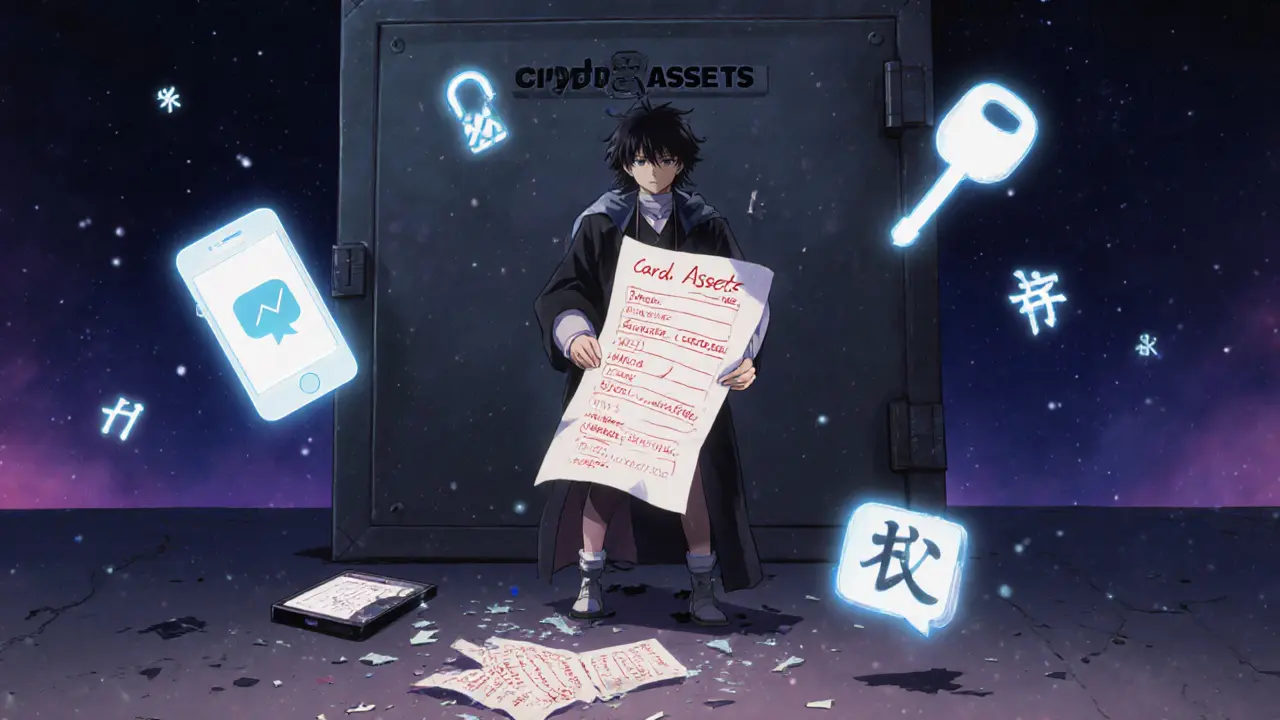
- Save your recovery codes. This is the most important step. You’ll be given 10-16 alphanumeric codes. Write them down on paper. Store them in a safe place - a fireproof safe, a locked drawer, or a physical vault. Do NOT save them in your email, Google Drive, Notes app, or cloud storage. Exchanges like Binance and Kraken explicitly say they cannot recover your account without these codes.
The whole process takes less than 3 minutes. But if you skip step 6, you risk locking yourself out forever. Reddit user u/LostMyCryptoKeys lost $8,500 after throwing away recovery codes and breaking their phone. Don’t make the same mistake.

What Happens If You Lose Your Phone or App?
Losing your phone isn’t the end of the world - if you did step 6 correctly. Your recovery codes are your lifeline. Use one to log back in. Then, immediately re-enable 2FA on your new device. If you didn’t save them? You’re stuck. Exchanges don’t reset 2FA without those codes. Period. No email, no call, no “I’m a real user” appeal will help. Binance’s Security FAQ says it plainly: “We cannot assist with 2FA recovery without valid backup codes.” That’s why experts recommend keeping multiple physical copies. One in your wallet, one at home, one with a trusted family member. Never store them digitally. If a hacker gets into your cloud account, they’ll find your codes and use them to reset 2FA themselves.Common Mistakes That Break 2FA
Even people who enable 2FA still get hacked - usually because they mess up the setup. Here are the top three mistakes:- Using SMS. Already covered. Don’t do it.
- Not syncing time on your phone. TOTP codes rely on accurate time. If your phone’s clock is off by more than 30 seconds, the code won’t work. Go to Settings > General > Date & Time and turn on “Set Automatically.”
- Installing authenticator apps on multiple devices without backing up. Apps like Authy let you sync across devices. Google Authenticator doesn’t. If you install Google Authenticator on a second phone without backing up the secret key, you’ll lose access to your codes on the first device. Stick to one device, and keep recovery codes safe.
Also, avoid third-party apps that claim to “backup” your 2FA keys unless they’re encrypted and offline. Binance’s new Binance Authenticator app offers cloud backup - but security expert Troy Hunt warns this creates a single point of failure. If Binance gets hacked, all those keys could be exposed.
What Comes After 2FA? The Future of Crypto Security
2FA is the baseline. The next level is hardware security keys like YubiKey or Titan Security Key. These physical devices plug into your computer or connect via NFC/Bluetooth. They’re immune to phishing, malware, and SIM swaps. Coinbase is already testing them in beta. Even more promising is FIDO2 Passkeys - passwordless login using your phone’s fingerprint or face ID. Kraken and others are piloting this. It removes the need to type codes entirely while being more secure than 2FA. But here’s the truth: you don’t need the future to protect yourself today. Enabling TOTP via an authenticator app and saving your recovery codes will stop 99% of attacks. The rest? That’s for institutions and high-net-worth users.Final Checklist: Did You Do It Right?
Before you close this page, ask yourself:- Did I use an authenticator app - not SMS?
- Did I scan the QR code correctly?
- Did I write down my recovery codes on paper?
- Did I store them somewhere safe - not in the cloud?
- Did I test a login using the app code to make sure it works?
If you answered yes to all five, you’ve just made your crypto holdings significantly safer than 36% of other users. That’s not luck. That’s responsibility.
Can I use 2FA on multiple crypto exchanges with the same app?
Yes. Apps like Google Authenticator and Authy let you add multiple accounts. Each exchange generates its own unique secret key, so your codes won’t conflict. Just make sure you label each account clearly in the app (e.g., “Binance,” “Coinbase”) so you know which code goes with which exchange.
What if my authenticator app stops working?
If your phone dies, breaks, or the app crashes, use your recovery codes to log in. Once you’re in, disable 2FA and set it up again on your new device. Never delete the app or reset your phone without first using your recovery codes to regain access. If you lost both your phone and your codes, you’re locked out - and exchanges won’t help you.
Is 2FA enough to protect my crypto?
It’s the most important step, but not the only one. You should also use a strong, unique password for each exchange, avoid clicking suspicious links, and consider moving large holdings to a hardware wallet like Ledger or Trezor. 2FA protects your exchange account - but if you leave your crypto on an exchange, you’re still vulnerable to exchange hacks. For long-term storage, cold wallets are safer.
Why do some exchanges require 2FA for login and others only for withdrawals?
It’s a trade-off between security and convenience. Exchanges like Crypto.com require 2FA for login to prevent unauthorized access entirely. Others like Binance only require it for withdrawals because they assume most users won’t log in from unfamiliar devices. But if someone steals your password, they can still log in and change your email or security settings - which is why enabling 2FA for login is strongly recommended, even if it’s not required.
Can I use 2FA without a smartphone?
Yes, but it’s harder. You can use desktop authenticator apps like WinAuth or Authy’s desktop version. You can also use hardware security keys like YubiKey that work with some exchanges. But most platforms require a mobile device to scan the QR code during setup. If you don’t have a smartphone, contact the exchange’s support team - some offer alternative methods, but they’re rare and often slower to set up.